What is the difference between end task and close window?
You may be wondering: isn’t the Close Window option, which is already available in the context menu, enough? The answer is that Close Window allows you to exit an application normally, giving you the opportunity to save any open work. End Task, on the other hand, ends the app immediately, without giving you the usual opportunity to save your data.
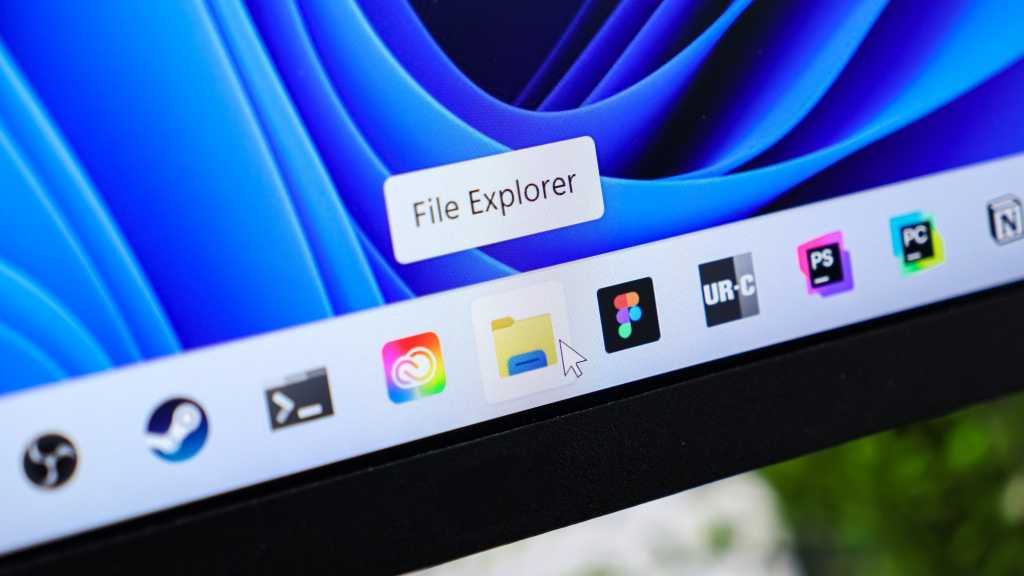
In File Explorer (also known as Windows Explorer), there is no End Task option in the taskbar context menu. Therefore, if you want to close a corrupted File Explorer, you will need to do so through Task Manager.
Using the new End Task feature
This feature is not enabled by default. To activate it, go to Settings > System and scroll down to the Advanced menu. Click on it.
At the top, you will find the End task option. Enable End Task in the taskbar by right-clicking. Move the switch next to On. The End Task option will appear in the right-click context menu of the taskbar, along with the Close Existing Window option.
Using the new End Task feature
All running programs have an icon on the Windows taskbar. To close a program immediately, simply right-click its icon and select End Task from the context menu. That’s all. The program will be cancelled.
The End Task option only appears in the context menu when the application is running.