Unfortunately, Backupper Standard needed a little help. I had to employ the venerable and equally free third-party boot disk creation tool (Rufus 4.8) to create Backupper recovery media that booted successfully on my test systems. Consider that valuable utility as a necessary complement to Backupper Standard.
Read on to learn more, and then check out our roundup of the best Windows backup software to compare.
What are the features of Aomei Backupper Standard 8.5?
I did a thorough comparison of Backupper Standard and Backupper Professional (before discovering the cheat sheet) to discern what features were and were not implemented in the Standard version.
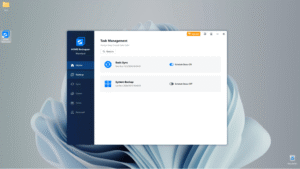
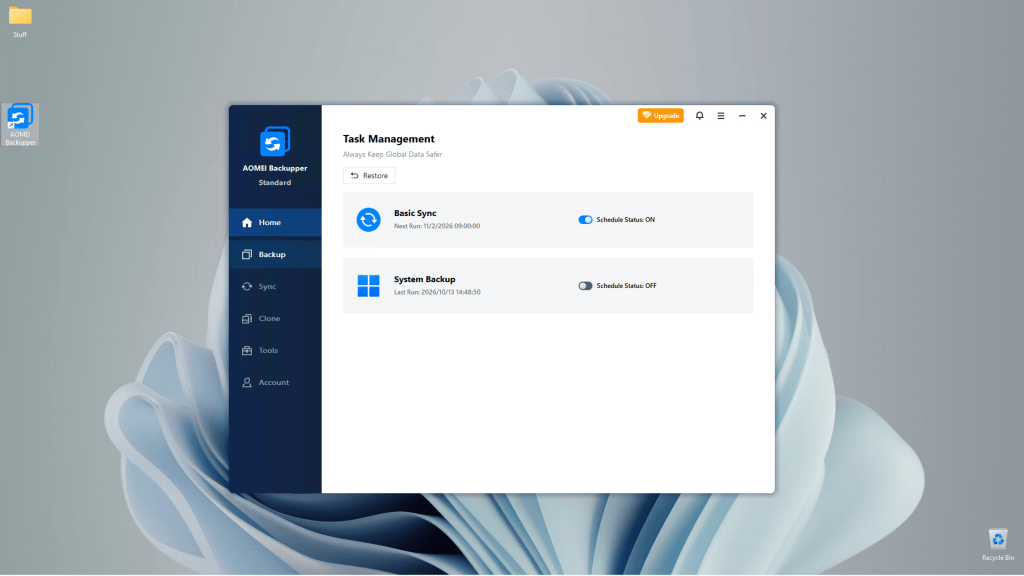
I was quite surprised by the overall functionality that is included. All the basics of the paid version are there: file/folder backup, system/drive/partition images, one-way sync with the ability to schedule them all.
Incremental and differential backups are supported, as is disaster recovery. Although, as I mentioned, I had a small problem creating the PE recovery disk (Linux is no longer offered). The final success was mine, but read the performance section carefully for clues on how to do it.
Backupper Professional features that are Those missing from Standard include: mirroring, two-way and real-time synchronization; selection of backups (deletion of old unnecessary files to make room for more); system partition and clone functions; as well as advanced features like recovery environment (a hidden partition on your main drive that you can boot from to restore), PXE boot (network boot), using the command line, etc.