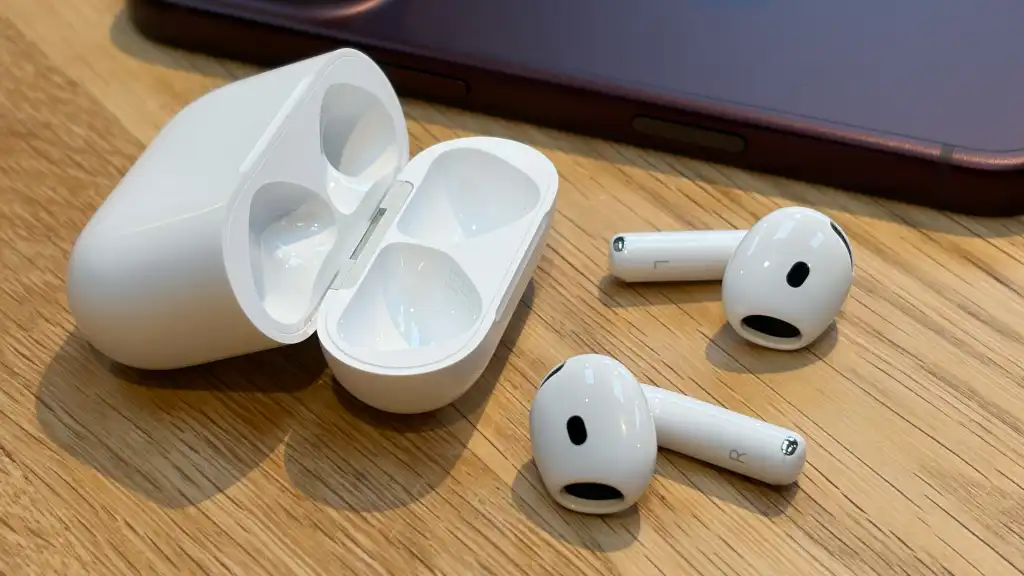
Apple has not yet revealed the contents of this version on its AirPods firmware page. These are likely simply “bug fixes and performance improvements” as there are no new iOS or macOS features that should require new firmware.
You cannot update the firmware of your AirPods manually. But there are steps you can take to check your firmware version and make sure Apple updates your AirPods as soon as possible.
How to update AirPods on iPhone, iPad or Mac
Make sure your AirPods are within Bluetooth range of your iPhone, iPad, or Mac. Make sure the device is connected to Wi-Fi.
- Place your AirPods in their charging case and close the lid.
- Connect the charging case (connect the USB cable to a power adapter and the charging case).
- Keep the charging case lid closed.
- Wait at least 30 minutes.
- Open the lid of the charging case to reconnect your AirPods to your iPhone, iPad, or Mac.
- Check the firmware version again.
How to check the firmware version of your AirPods
On iPhone or iPad: With your AirPods nearby and the case open, open Settings on your iPhone or iPad. You’ll see your AirPods at the top of Settings. Tap that and scroll down to the bottom of your AirPods settings to see the Version.
On Mac: Open System configuration. Select bluetoothand then click (i) next to your connected AirPods. The version will appear there, along with other information.