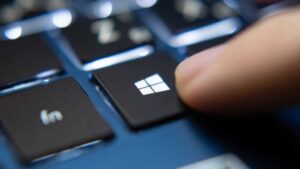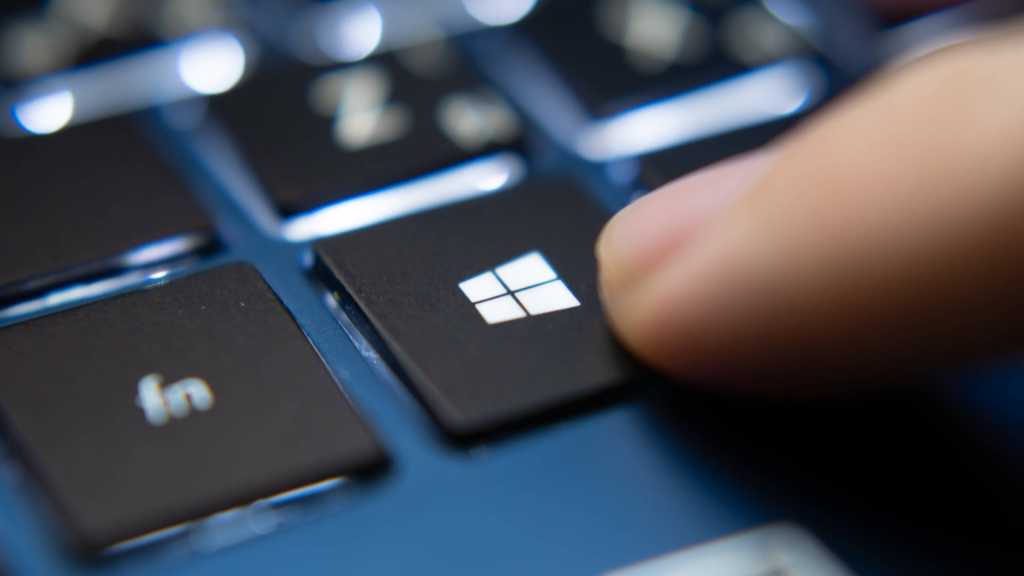
By pressing these four keys simultaneously, you are in a sense resetting the graphics driver. This action occurs through the Desktop Window Manager (DWM), which resets itself and in turn resets the graphics driver.
The good thing about this solution is that you can do it without having to close any application. That said, you should probably save any work in progress, as a backup, before continuing.
Please note that this solution only applies to a software issue. If your monitor problems are hardware related (originating from the monitor itself or a faulty GPU, or due to a major system failure), this hotkey will not solve your problem.
You will know that the controller has reset by a beep or a brief flash on the screen. The screen should now work smoothly again.
Related content